
Import employees from CSV
Upload a spreadsheet, check the columns, review every change, then apply. Nothing changes until you do.
The import is built to be re-run: next month's export from your payroll or HR system goes through the same steps. Owners and admins can import. If you'd rather not, send the file to your OHS contact, who prepares the import for you to review and approve.
- 1Upload the file
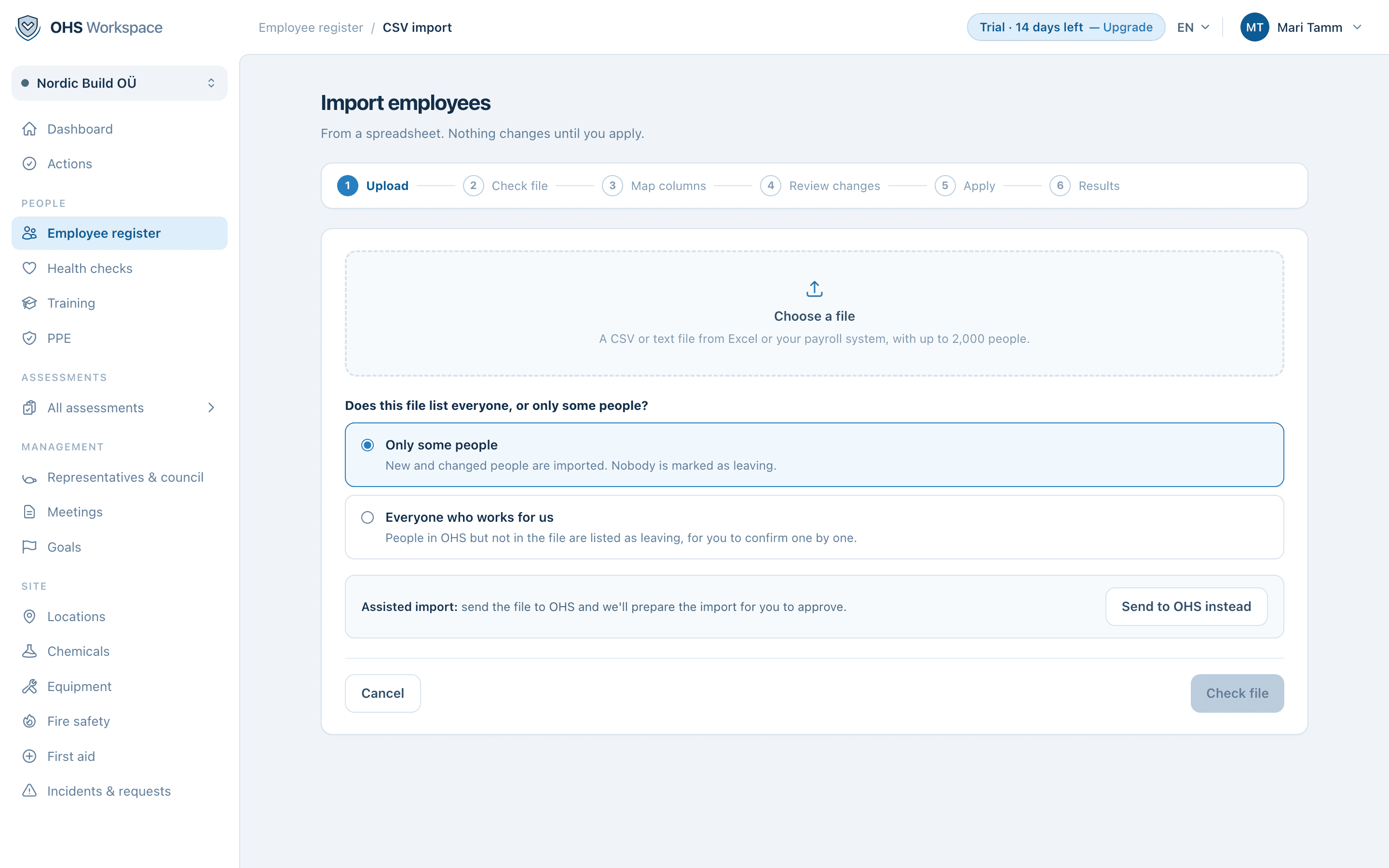
People → Employee register → Import CSV. Choose a CSV or text file from Excel or your payroll system, with up to 2,000 people, and say whether it lists everyone who works for you or only some people.
- 2Check the file and map the columns
OHS shows the first rows as it reads them. Match your columns to fields such as first and last name (or full name), email, personal code, job title, work location and start date. Columns you don't need are left out.
- 3Review the changes
Before anything is written you see every change: new people, changed details, people who are returning and, if the file lists everyone, people who are leaving. Rows OHS can't use are listed with the reason.
- 4Apply
Only after you confirm does the import write anything. The results show what was created, updated and deactivated, and you can download a report.
Files that list everyone
Choose Only some people and the import adds and updates people without marking anyone as leaving. Choose Everyone who works for us and people who are in OHS but not in the file are listed as leaving; you confirm each one before they're deactivated.
Tell us about your company, and we’ll help you get started.